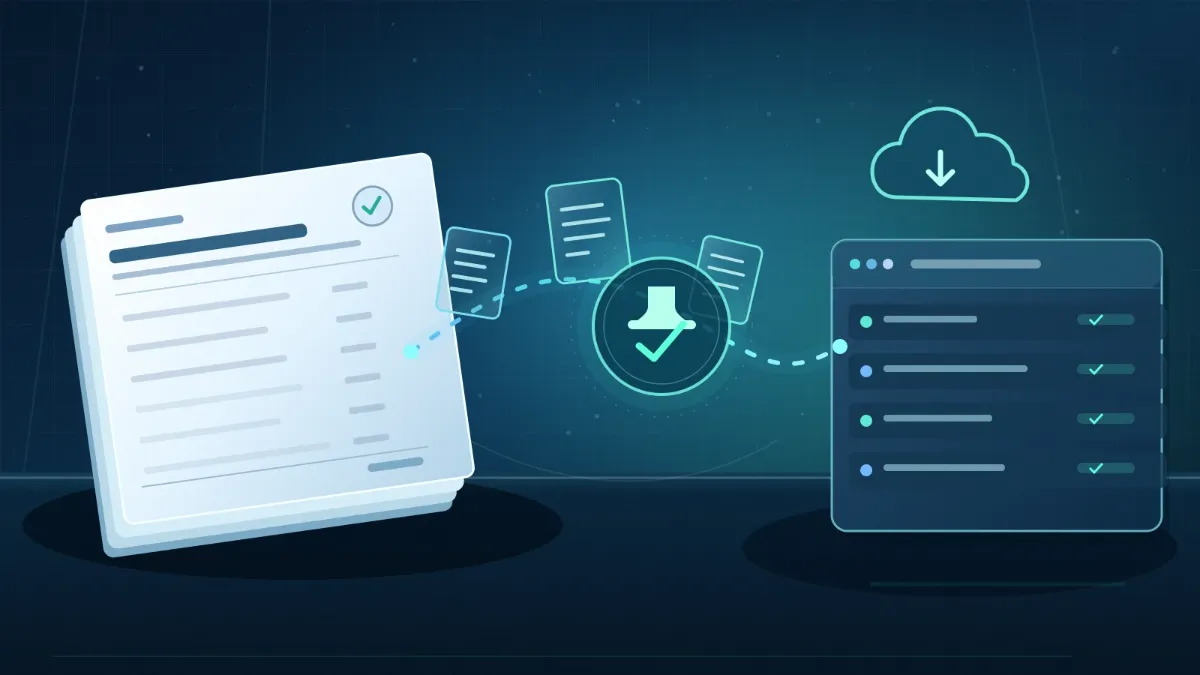
It's the end of the month. A sales rep closes a big order in the CRM and celebrates. Two days later the customer calls, annoyed: the invoice has a different price and two products are missing. Nobody did it on purpose. The order was retyped into the ERP by hand, from an email, using last quarter's price list.
A CRM for sales teams works fine as long as the job ends at the opportunity. The trouble starts afterwards, when that order has to become a shipment, an invoice and a payment in another system. If the CRM and the ERP don't talk to each other, someone copies data between screens, and that person makes mistakes, falls behind or goes on vacation. Here we look at which data to sync between CRM and ERP, how it works with Dynamics 365 Sales and Business Central or with SAP Business One, and the mistakes we see most often.
If you haven't picked a CRM yet, start with how to choose a CRM your team will actually use. This article assumes you already have one, or are about to roll it out, and that the ERP got there first.
What data has to move between CRM and ERP
The rule that works best is simple: every piece of data has one owner. The other system reads it or receives a copy, but doesn't edit it on its own. When two systems can change the same field without rules, sooner or later one overwrites the other.
This is how ownership usually splits in a company that sells stocked products:
| Data | Usual owner | Direction | Notes |
|---|---|---|---|
| Customers (accounts) | Depends on the process | Both ways, with rules | The CRM creates prospects; the ERP validates tax and credit details |
| Contacts | CRM | CRM → ERP | The sales team keeps them up to date |
| Products and units of measure | ERP | ERP → CRM | Nobody in sales should invent a product code |
| Price lists | ERP | ERP → CRM | Reps quote the current price, not the one they remember |
| Stock availability | ERP | ERP → CRM | Read only; it keeps reps from promising what isn't there |
| Quotes and orders | CRM, then ERP | CRM → ERP, with status coming back | The order starts in sales and is fulfilled in operations |
| Invoices and balances | ERP | ERP → CRM | Reps see what a customer owes before offering more credit |
Journal entries, costs and line margins are better left out, at least at first. The CRM doesn't need them to sell, and bringing them in makes permissions harder.
Dynamics 365 Sales with Business Central: what's already built
If both applications are from Microsoft, a good part of the work is done. Business Central ships with a standard integration to Dynamics 365 Sales that goes through Dataverse, the Power Platform database. Microsoft's documentation on integrating Business Central with Dynamics 365 Sales lists the out-of-the-box mappings:
- Business Central customers with Sales accounts, and contacts with contacts, in both directions.
- Business Central salespeople with Sales users, from Sales to Business Central.
- Items and resources with products; customer price groups and sales prices with price lists.
- Sales orders: they sync from Sales once the rep marks them as Submitted, and you can turn on two-way sync with the Bidirectional Synch of Sales Orders option.
- Posted invoices in Business Central, which flow to Sales so reps can see them.
In practice, the rep quotes with ERP prices and checks stock without leaving the CRM. A scheduled job refreshes that availability every 30 minutes. When the order ships in Business Central, its status in Sales changes to Fulfilled, and once the invoice is paid it shows as Paid. Microsoft's guide on using Dynamics 365 Sales from Business Central covers all of this.
Built in doesn't mean it runs itself. There's an order to follow: couple salespeople with users before customers, units of measure before items, price groups before prices. If your customers buy in foreign currency, currencies need coupling too. Skipping that order is the most common cause of sync errors in the first week.
There's also a limit worth knowing before you buy. Microsoft warns that Business Central only integrates with Dynamics 365 Sales, and that other apps that change the standard Sales data model can break the integration. If you plan to customize the CRM heavily, raise it during design, not afterwards.
With billing data inside the CRM, Copilot in Dynamics 365 also has more to work with: an account summary that knows what the customer bought and what they owe is a lot more useful than one that only sees emails.
If your ERP is SAP Business One
SAP Business One has its own sales opportunities module, organized by stages, and for many small businesses with a small sales team that's enough. When the team grows or needs more sales automation, the question of connecting an external CRM comes up.
In that case there's no standard Microsoft connector like the one for Business Central. The integration is built on the SAP Business One Service Layer, an OData interface that exposes business partners, items, orders and invoices. On the CRM side you can use Power Automate, Azure Logic Apps or a custom-built service, depending on volume and how many rules you need.
The ownership table still applies, but here every arrow has to be built and maintained. Start with customers, products with prices and orders, and leave invoices and balances for a second phase.
Mistakes we see in these projects
The technology rarely fails. This does:
- Duplicate customers from day one. The systems get connected before anyone cleans the data, and the same customer shows up three times under different names. Business Central offers match-based coupling, which helps, but it doesn't replace a cleanup beforehand.
- Editing in the CRM what belongs to the ERP. If reps can change a product's price in Sales, Business Central ends up creating a new price list per order. Microsoft recommends not editing by hand the price list the integration creates.
- Custom fields nobody mapped. Data your company relies on, like a Chilean tax ID (RUT), line of business or a special payment term, won't move unless someone adds it to the field mapping. Decide which ones reps need and which stay in the ERP.
- Sync errors with no owner. The integration logs what failed, but someone has to look at it. Without a person in charge, stuck orders get discovered when the customer calls.
- Promising real time when it isn't. With scheduled sync, data can take minutes to show up on the other side. That's fine for most sales processes, as long as the team knows.
How to start without breaking what already works
A sensible order for a CRM–ERP integration project:
- Decide which system owns each piece of data, using a table like the one above.
- Clean up customers and products in the ERP before connecting anything.
- Connect master data first (salespeople, currencies, units, customers, products, prices) and test with a small group of accounts.
- Turn on orders only once master data is stable.
- Add invoices and balances last, and decide who handles sync errors.
Frequently asked questions
Do I need Dynamics 365 Sales if I already use Business Central?
Not always. Business Central has basic contact and opportunity features. Sales makes sense when your team needs to manage a pipeline with stages, forecasts and activities, and you want that to end up as ERP orders without retyping them.
Is the Sales and Business Central integration real time?
Mostly it runs on scheduled jobs. By default, customer and contact sync runs every 30 minutes, and stock availability also refreshes every 30 minutes. You can also sync a single record manually.
Can I connect Dynamics 365 Sales with SAP Business One?
Yes, but not with a standard connector. It's integrated through the SAP Business One Service Layer, using tools like Power Automate or custom development, and it's best to start with customers, products and orders.
Let's talk about your case
At Disrupsoft we implement Dynamics 365 in phases, starting with a review of your sales and finance processes, and we connect it with Microsoft 365, Power Platform and the systems you already use. If your sales team is still copying orders into the ERP by hand, let's talk about Dynamics 365.